

EraPOS runs in the salon, on the store computer and its registers. WBAMS POS is the salon's website and back office, with the POS built in: since EraPOS 2.0, WBAMS keeps the salon's records and the store app works on them. Each sale, client, appointment, clock-in and close-out made at the desk goes to WBAMS by itself, and what is changed in WBAMS (a booking made online, a new price, a new member of staff) reaches every register by itself. How EraPOS fits together shows the whole picture.
The articles in this group are for the person who looks after the salon's WBAMS. Each one says which page to open, which button to press and what you will see.
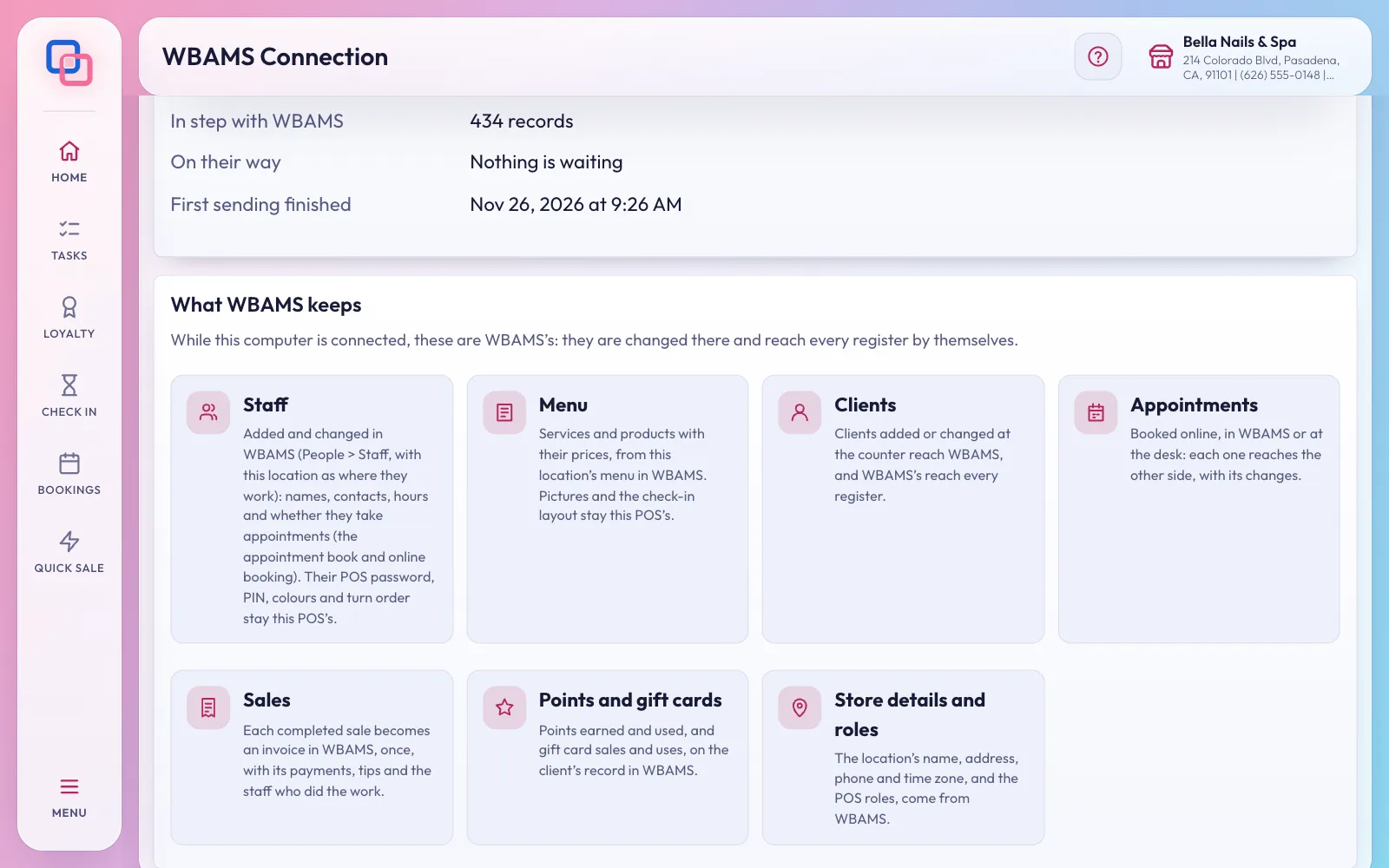
What WBAMS keeps, and where it is changed
While a store computer is connected, these are WBAMS's. The store app shows them and does not change them: change them in WBAMS, and every register has the change within a minute or so.
| What | Changed in WBAMS | Read more |
|---|---|---|
| The location: name, address, phone, time zone, currency, opening hours | System Settings → Locations | Locations, Opening hours and availability |
| Staff: names, contacts, working hours, whether they take appointments, commission and pay | Staff → View / Search, the person's staff record | Staff and register roles |
| What each person may do at the register | Staff → Register roles | Register roles |
| The menu: services and products, their prices and lengths | System Settings → Products/Services | Menu and prices |
| Points rules and the loyalty programme | System Settings → Loyalty | Points |
Some things go both ways, and the last change saved stands, wherever it was made:
- Clients, added or changed at the desk or in WBAMS. See Clients.
- Appointments, booked online, in WBAMS's Calendar or at the desk. See Online booking.
- Commission and pay, from EraPOS 2.0.2, and employee details (name, phone, email, schedule and the appointment book switch), from EraPOS 2.0.17. See What goes both ways.
What only the desk does reaches WBAMS once: every sale with its payments and tips, points earned and used, gift card sales and uses, clock-ins, the waiting list, close-outs and the cash drawer. See Sales and reports.
What stays the store app's own: employees' POS passwords and PINs, colours and turn order, pictures of menu items, the check-in layout, and the register's own settings, such as receipts, printers and the card price.
While the website is down
The registers keep working. Tickets, the appointment book, the waiting list and the day's close-out are all worked at the store, on the store computer's copy of WBAMS's records. What is saved meanwhile waits on the store computer and reaches WBAMS when the website answers again.
- Online booking goes on: WBAMS takes bookings whether or not the store computer is calling in, and the store computer reads them when it calls again.
- Card payments on card readers go through WBAMS, so they cannot start while it is out of reach. Cash and other ways to pay work as usual.
- Prepaid visits cannot be checked while WBAMS is out of reach. A visit already used on a ticket waits until it is back.
Before you start
- WBAMS POS 1.13.10 or later on your website, answering on HTTPS with a valid certificate. The update is under Utilities → System → Update WBAMS.
- The POS switched on: System Settings → Management Levels, under Modules. While it is off, the POS pages say POS is switched off, store computers cannot connect, and online booking, the staff app and texts are off. Everything the POS holds is kept.
- The Manage POS permission on your administrator role (System Settings → Administrator Roles). Without it, the POS menu and the Calendar are not in the sidebar. Changing card readers also needs Configure Payment Gateways.
- EraPOS 2.0.18 or later on the store computer. See Update and uninstall.
Find your way around
A link or bookmark to the earlier Addons → EraPOS pages opens the page that replaced it.
The salon's features
Gift cards, packages and memberships, service add-ons, standing visits, off-peak prices, rooms and equipment, booking protection, the online waiting list, care notes, intake forms, texts and retail stock are set up in WBAMS too, and reach the registers by themselves. Each has its own guide in Grow your salon. Check-in tablets and the staff app are in Customer check-in and EraPOS Hub.