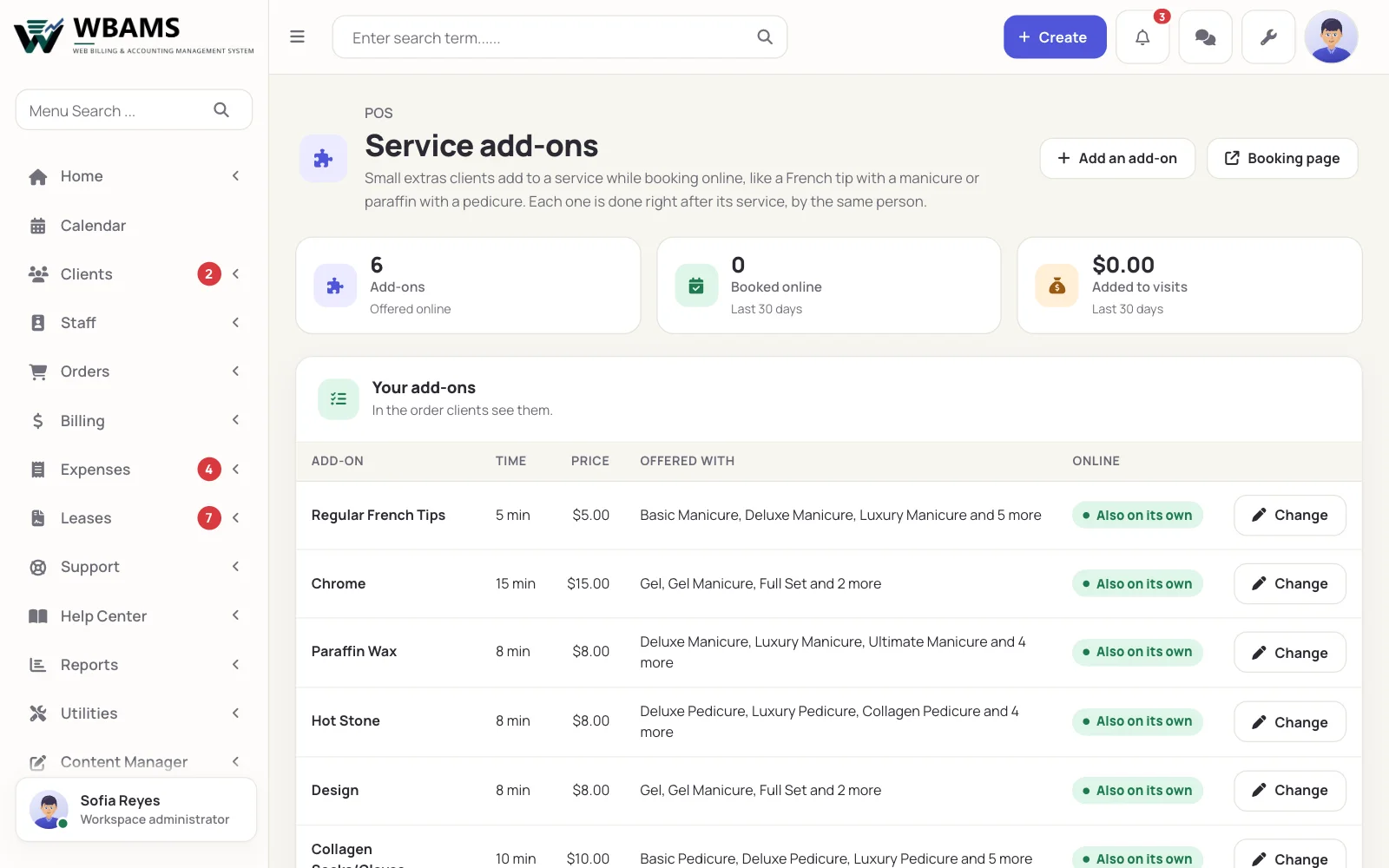

An add-on is a small service clients add to a main service while they book online, such as French tips with a manicure or paraffin with a pedicure. It is done right after its service, by the same person, and its time and price are its own.
Add an add-on
- Open System Settings → Service add-ons and press Add an add-on.
- Under The add-on, choose the service clients add, such as Regular French Tips. Each service is listed with its time and price.
- Under Offered with, tick the main services it is offered with.
- Press Save.
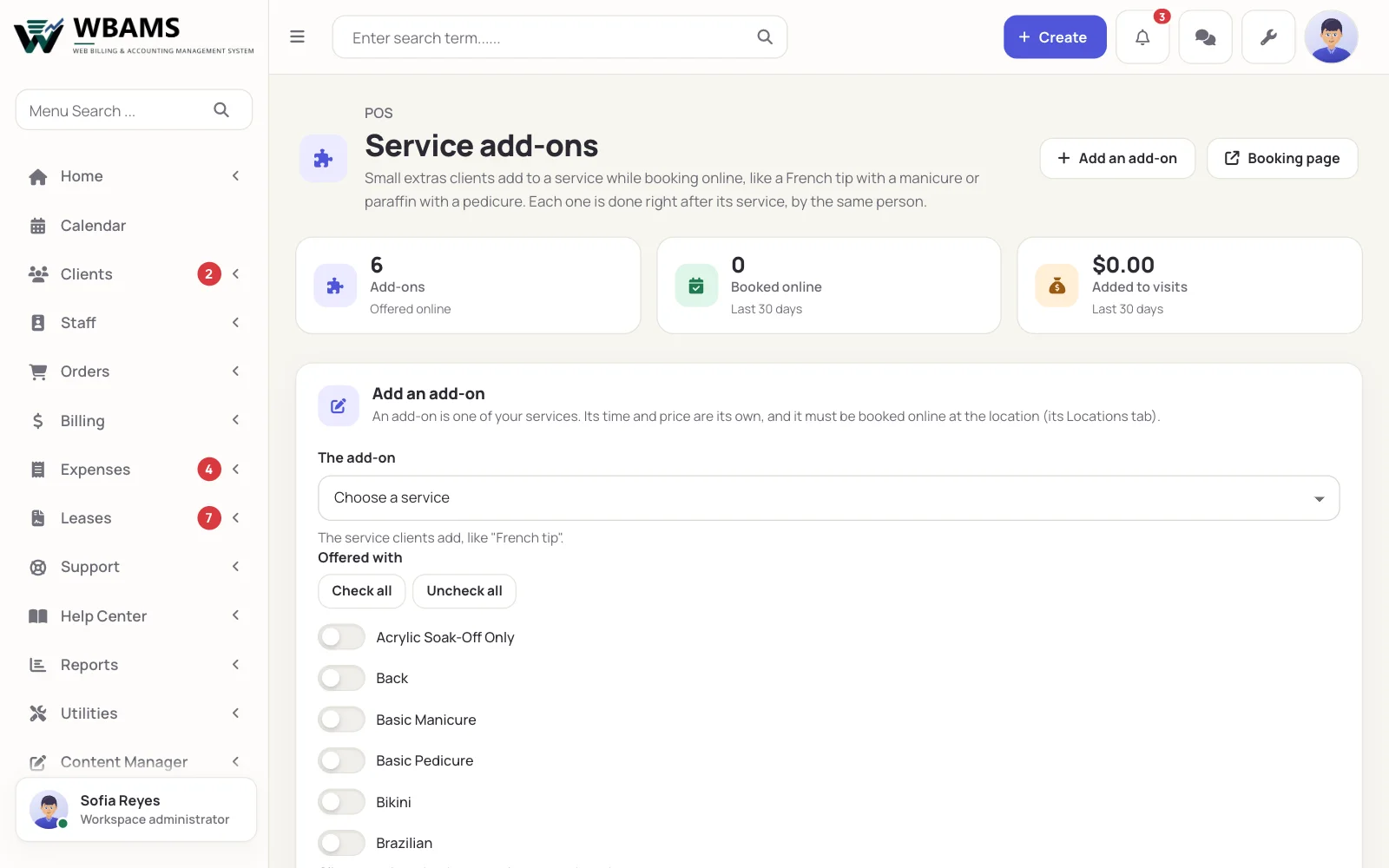
The add-on is one of your services, so it must be offered and booked online at the location, on its Locations tab under Clients → Products/Services.
While a client books
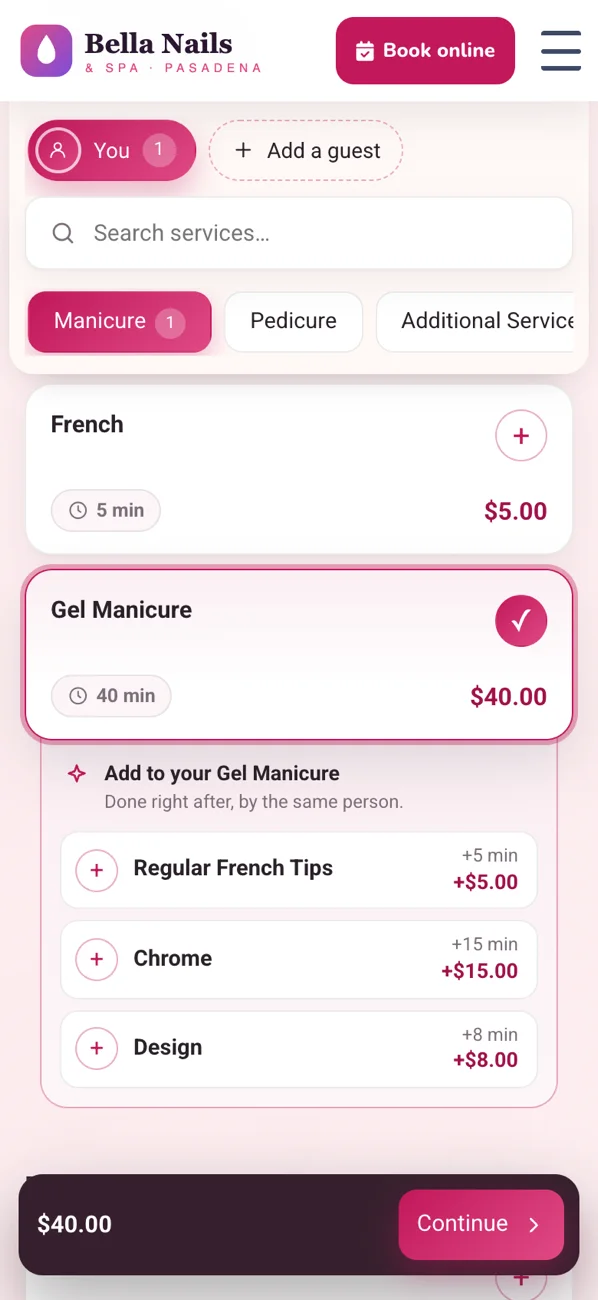
Once a client chooses a main service, its add-ons appear under it, each with its time and price. One tap adds it to the visit. The visit's time grows by the add-on's time, and the register gets both on the ticket.
The list on Service add-ons shows each add-on with its time, its price, the services it is offered with, and whether it can also be booked on its own. The figures at the top count the add-ons booked online in the last 30 days and what they added to visits.