

The add-on gives your website a page called Book online. A customer signs in, chooses a store, a service, a technician and a day, and presses a free time. The booking is made at once. It appears in the POS's appointment book within a minute, and the customer pays at the store.
Turn it on
- Connect the store PC. See Connect the store server.
- Make the technicians bookable. Each needs to be on the store and linked to their POS employee: a store whose POS sends its records does both by itself (see Employees from the POS). Then switch on Online Appointment for them on the POS. See Who can be booked online.
- Make the services bookable. On the store's catalog page, each service needs Offered here, Online booking and at least one person under Performs it. It also needs a duration. See Choose what each store offers.
- Link the opening hours, if bookings should stay inside them. See Link schedules to the store.
- Switch it on for the store. On the store's card What its POS may send back, switch on Online booking and press Save.
- Wait for the store PC to publish. Within about ten minutes, the store's Online booking card shows a time under Last published. To have it at once, press Publish availability now on the POS's WBAMS features tab.
Nothing has to be switched on at the POS for bookings. A paired store PC publishes and collects by itself once the store's switch is on.
Booking emails need working email in your WBAMS. See Set up email.
The Book online link
The booking page is at extensions/addons/erapos/book.php on your site, for example https://example.org/extensions/addons/erapos/book.php.
- When the add-on is activated, it adds Book online at the end of your site's header menu. Change its label, move it or remove it under Content Manager → Menus, like any other item. See Menus.
- If a menu already links to the booking page, no second link is added.
- On a site whose menu is not built under Content Manager → Menus, the client area's menu shows Book online while a store takes online bookings.
- The add-on's website sections link to the page too. See Website sections.
What a customer does
- They open Book online and sign in to their account on your site. Only signed-in clients can book.
- Choose a store. Each store is listed with its address. This step is skipped when one store takes bookings, or when the link they followed names a store.
- Choose a service. Each is listed with its duration and its price. The price is written the way the rest of your site writes prices in the store's currency, such as $35.00.
- Under With they choose Anyone or a technician, and under Day a date. They press Show times.
- Under Free times on that day, each free time is a button. They can type a Note for the store (optional) first.
- They press a time. That books it. The page answers “You are booked.” with the service, the day, the time and the technician, and “You pay at the store.”
Technicians are shown by first name and the first letter of their last name.
Below the steps, Your bookings lists their upcoming bookings with When, Service, Store, With and Status, and a Cancel button.
A new customer needs an account on your site before they can book. Whether visitors can register themselves is a WBAMS setting; see Client registration. A client who was not a customer of the store becomes one when they book. See Customers.
A client whose account is closed in WBAMS cannot book online. The page tells them “Your account is closed, so it cannot book online. Please call the store.” A booking they made before the account was closed stays, and they can still cancel it.
The rules behind the free times
| Rule | Detail |
|---|---|
| Start times | Every 15 minutes. |
| Earliest | One hour from now. |
| Latest | As far ahead as the store PC published, up to 45 days. |
| Inside | The technician's work hours and, when schedules are linked, the store's opening hours. |
| Never during | Breaks, holidays, appointments and blocked time on the POS, and other online bookings. |
| Anyone | WBAMS picks, among those free, the technician with the least booked that day. |
| Per client | At most 3 upcoming bookings at a store, and no two at the same time. |
| Cancelling | Up to one hour before. After that the page says “It is too late to cancel online. Call the store.” |
A user who acts for someone else's account can book only if they may place orders on that account.
What the customer sees under Status
| Status | Meaning |
|---|---|
| Being sent to the store | The store PC has not collected the booking yet. |
| Confirmed by the store | It is in the appointment book. |
| Confirmed; the store is checking the time | It is in the appointment book, but something has to be checked. See below. |
| The store is reviewing it | The POS could not add it by itself. |
| Cancelled | The customer cancelled it. |
What the salon sees
On the POS
The store PC asks WBAMS for new bookings every half minute. For each one it adds an appointment to the appointment book: for the linked technician, with the service, and with the customer's note. The customer is their linked POS customer. If they have none, the POS makes one and links it.
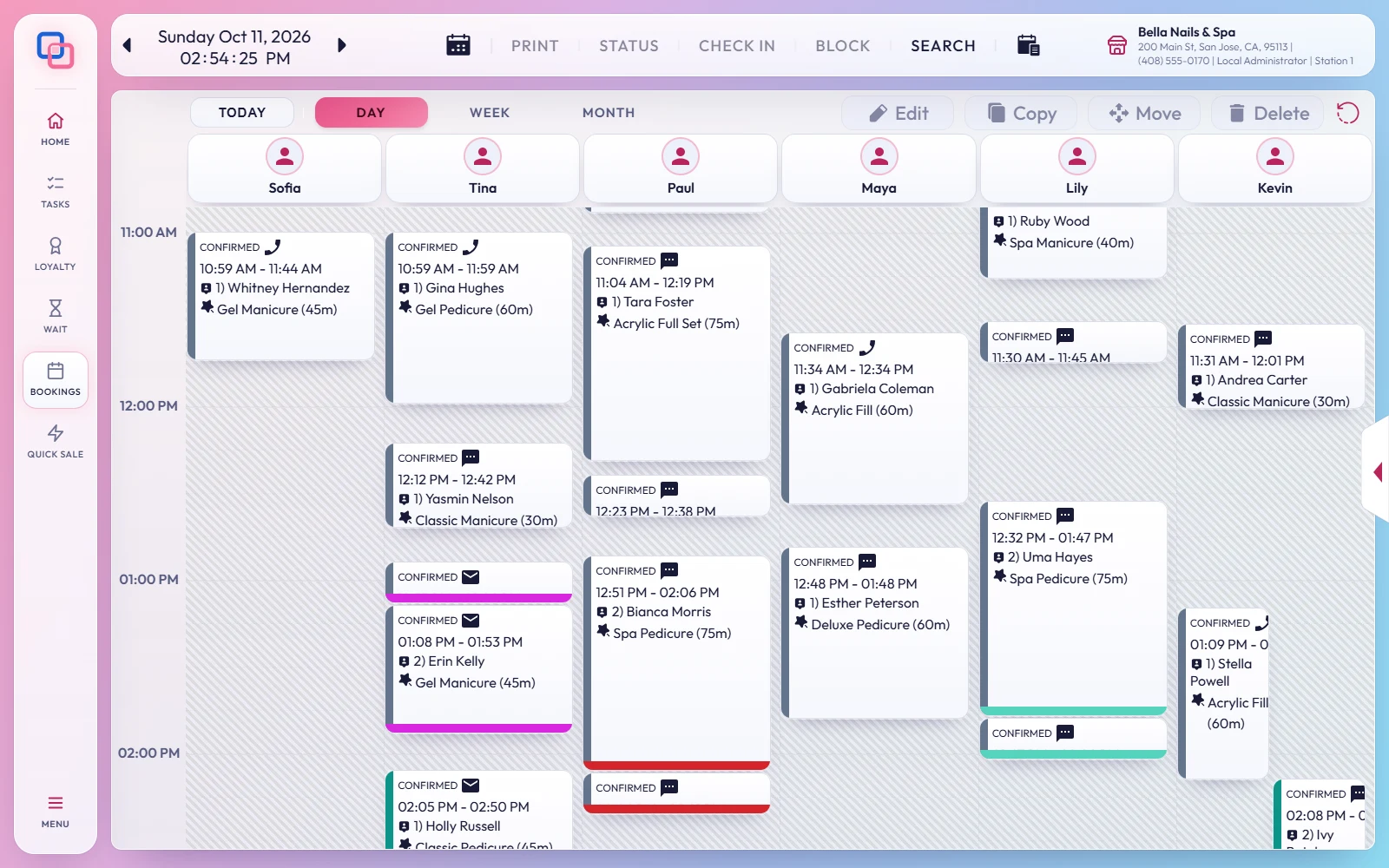
The customer is already booked, so the appointment is always added. In three cases it is added unconfirmed, with a note that starts “Booked online, but”:
- the time overlaps another appointment of that technician;
- the technician is not on this POS;
- the service is not on this POS.
The front desk then checks it with the customer. The first case can happen when the front desk gives the same time away at the moment the customer books it.
When the customer cancels, the appointment is cancelled on the POS.
The WBAMS features tab shows the count under Online booking: when it last checked, how many were added and how many unconfirmed. A table lists the latest bookings with Collected, Booking, Status, On the POS and Note. Collect bookings now asks at once.
In WBAMS
The store's Online booking card lists the bookings from today on, up to 100: Booked for, Service, Client, With and Status. The status says Booked or Cancelled, and what the store PC did with it:
- not collected yet
- on the POS
- on the POS, unconfirmed (time to check), with the POS's note
- not on the POS, with the reason. Add that appointment by hand.
Each booking and each cancellation is also in Latest changes, under the client's name with “(online)”.
The add-on does not email the salon about a booking. An owner who uses EraPOS Hub gets a New online booking notification in the app. See EraPOS Hub.
The booking emails
The customer is emailed three times at most.
| Template | Sent when | What it says |
|---|---|---|
| EraPOS Booking Confirmation | They book. | The service and its duration, the date and time, the technician, the store with its address and phone, the price “paid at the store”, their note, and a link to their bookings. |
| EraPOS Booking Cancellation | They cancel. | The same details, and a link to book again. |
| EraPOS Booking Time Check | Once, when the POS added the booking unconfirmed or could not add it. | That the store has the booking and is checking its time, and that the store will contact them if the time has to change. |
They are ordinary WBAMS email templates of the general kind. Change their wording, or disable one, under Settings → Email Templates. See Edit the templates.
- Keep the templates' names. The add-on finds them by name, and makes a new one with the standard wording if one is missing.
- The add-on never overwrites wording you changed.
- The POS's own note about an unconfirmed booking is for the store. It is not sent to the customer.
- The emails are in the client's email history in WBAMS.
- If an email cannot be sent, the booking or cancellation still goes through. The failure is written to WBAMS's activity log.
The templates can use these fields, besides WBAMS's usual client fields:
| Field | Prints |
|---|---|
{$booking_service} | The service's name |
{$booking_date} | The date, written out |
{$booking_time} and {$booking_end} | The start and end time |
{$booking_duration} | The duration in minutes |
{$booking_staff} | The technician's first name and last initial |
{$booking_store}, {$booking_store_address}, {$booking_store_phone} | The store's name, address and phone |
{$booking_price} | The price, in the store's currency |
{$booking_note} | The customer's note |
{$booking_url} | The address of the booking page |
Stop taking bookings
Switch off Online booking on the store's card What its POS may send back and press Save. The store is no longer offered. Bookings that were already made, and their cancellations, are still handed to the POS.
A store also stops being offered by itself when WBAMS has not heard from its store PC for 30 minutes, and when the store is closed or its business suspended.
What online booking does not do
- It takes no payment and no deposit. Customers pay at the store.
- It does not take bookings from visitors who are not signed in.
- It books one service per booking. A customer who wants two services books twice.
- It has no approval step. A booking is made the moment the customer presses a time.
- It cannot move a booking. The customer cancels and books again.
- It sends the three emails above and no reminder.