

Clients choose an amount, who the card is for and a message, and pay by card. The card is emailed to the person it is for as soon as it is paid, and every register can take it at once. Each card also has its own page for the phone, with what is left on it and a barcode the front desk scans.
Online gift cards are paid through Stripe, so Stripe must be set up as a payment gateway first.
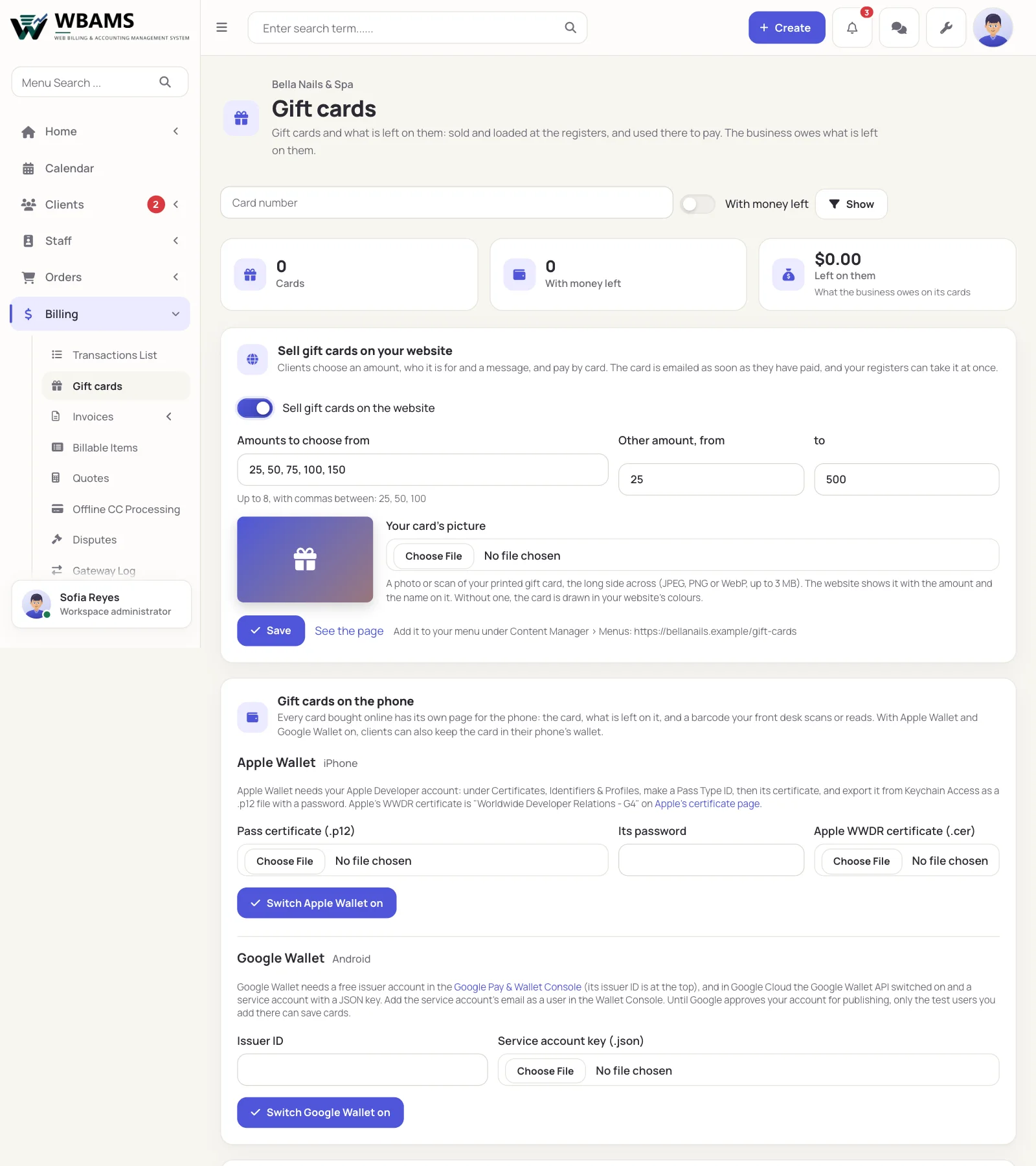
Sell gift cards on your website
- Open Billing → Gift cards.
- On the card Sell gift cards on your website, switch on Sell gift cards on the website.
- Under Amounts to choose from, type up to eight amounts with commas between them, such as
25, 50, 100. - To let clients type their own amount, fill in Other amount, from and to. Leave them empty to offer only the amounts above.
- Under Your card's picture, choose a photo or scan of your printed gift card, the long side across (JPEG, PNG or WebP, up to 3 MB). Without one, the card is drawn in your website's colours.
- Press Save. See the page opens the gift card page, at
/gift-cardson your site. - Add the page to your website's menu under Content Manager → Menus.
What the client does
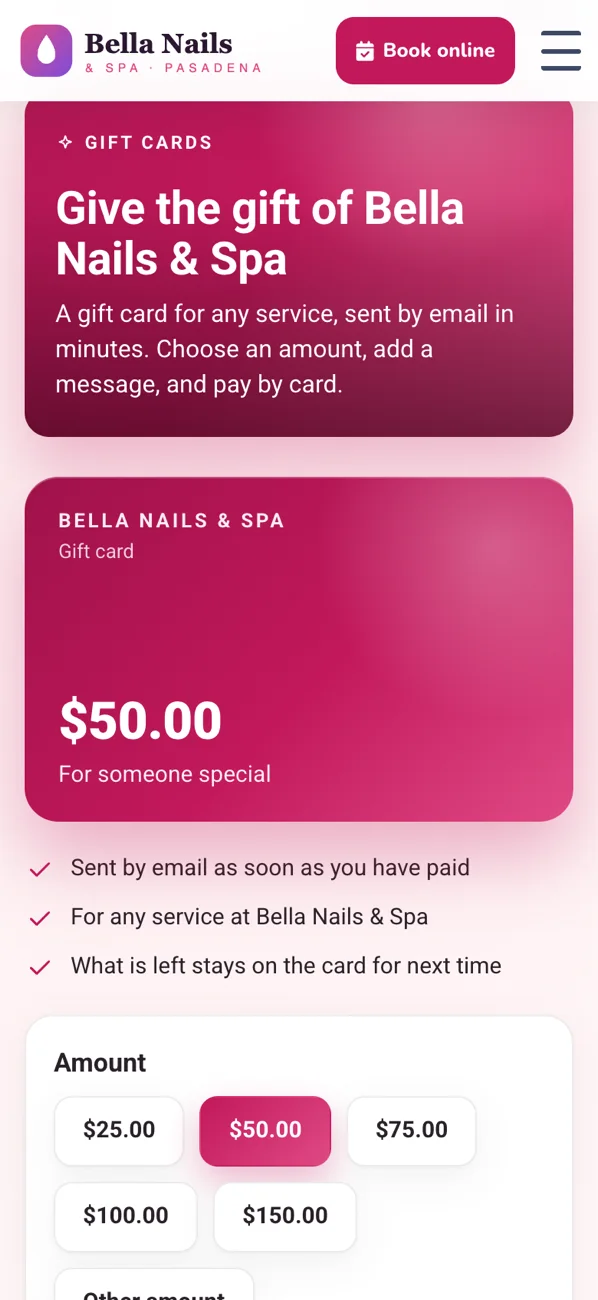
- They open your gift card page and choose an amount.
- They type who the card is for, their email, and a message. The picture of the card changes as they type.
- They pay by card. The card is made and emailed to the person it is for.
At the register, the card works like any other gift card. The cards list at the bottom of Billing → Gift cards shows every card, what is left on it, and when it was first and last used. The figures at the top show what the business owes on its cards.
Apple Wallet and Google Wallet
With a wallet switched on, each card bought online gets an Add to Apple Wallet or Add to Google Wallet button on its phone page. Both are on the card Gift cards on the phone.
Apple Wallet
- In your Apple Developer account, under Certificates, Identifiers & Profiles, make a Pass Type ID and then its certificate.
- Export the certificate from Keychain Access as a
.p12file with a password. - Download Apple's WWDR certificate, Worldwide Developer Relations - G4, from Apple's certificate page.
- In WBAMS, choose the Pass certificate (.p12), type Its password, and choose the Apple WWDR certificate (.cer).
- Press Switch Apple Wallet on. If a file is refused, the page says why.
Google Wallet
- Make a free issuer account in the Google Pay & Wallet Console. Its issuer ID is at the top.
- In Google Cloud, switch on the Google Wallet API and make a service account with a JSON key.
- Add the service account's email as a user in the Wallet Console.
- In WBAMS, type the Issuer ID, choose the Service account key (.json), and press Switch Google Wallet on.
Until Google approves your issuer account for publishing, only the test users you add in the Wallet Console can save cards.